A modern take on the x230: https://www.youtube.com/watch?v=da5GC3i0dxU
Nomatter what, there's only the x230 (or similar). They're designed to run Win7. It’s one of the last ThinkPads (x230 was released in 2012) where Windows 7 is fully supported out of the box with no hacks needed. Other computers, even if they will run Win7, require more work to find and make the drivers work. You can get x230s with a swivel touchscreen.
x230 Downsides
- Trackpad is terrible. Constantly accidentally dragging files and folders into other folders.
- Battery not usually good. Connected through far side of x230.
- No HDMI.
- On Windows7, how do you secure the USB ports?
Most powerful x230 available
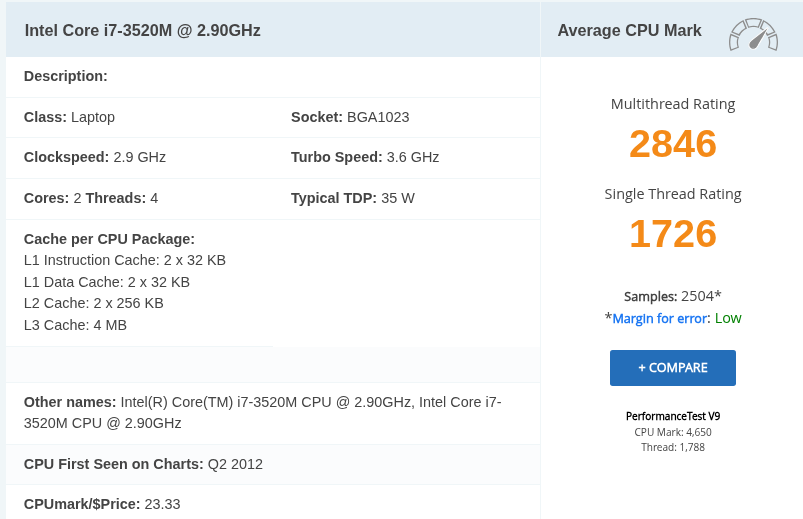
- Intel Core i7-3520M (3rd Gen Ivy Bridge), 2 cores, 4 threads
- 6 GB DDR3L-1600 (2×8 GB SO-DIMM). Make sure it's DDR3L (1.35V), not regular DDR3.
- Storage: 2TB+ SATA SSD + 1TB mSATA SSD (optional). 2.5" SATA SSD (up to 4TB possible with modern drives). Optional mSATA SSD in the WWAN slot (if not using LTE). Gives you dual SSDs: boot from mSATA, use SATA for bulk storage
- Battery: 9-cell battery (~6–10 hours). Aftermarket 99Wh batteries exist but may vary in quality
- Other Mods: BIOS Whitelist Removal (via Coreboot or patched BIOS), allows for modern Wi-Fi cards like Intel AX200 (Wi-Fi 6). Backlit keyboard swap. USB 3.0 ExpressCard expansion. ThinkLight + webcam upgrade if missing
Reasons x230 (and similar) are the only computer
- Drivers: Lenovo provides full Windows 7 64-bit driver support on its website.
- BIOS Compatibility: Fully compatible with Windows 7 boot modes (Legacy and UEFI without Secure Boot)
- Storage: SSD for performance (SATA or mSATA)
Notes on 7 Home Premium
Making a USB flash drive with Windows 7 installer on it using a Linux computer isn't easy, so on this website (ours) we have a script you can use https://tttthis.com/edit/blog/how-to-make-a-windows-7-install-usb-flash-drive-using-a-linux-computer
Win 7 (Sp1) Home Premium 64bit is the version of Win7 you want. It has a max RAM of 16gb, which is the same max as the x230. Pro allows 64b of RAM but you can't install that on an x230. Any 32bit Win7 maxes out at 4gb of RAM, so use 64bit). Win7 is not supported anymore, so you might not even get wifi to work (recent sales of x230s are tested with running Win7 installed but wifi not confirmed to be working for this reason).
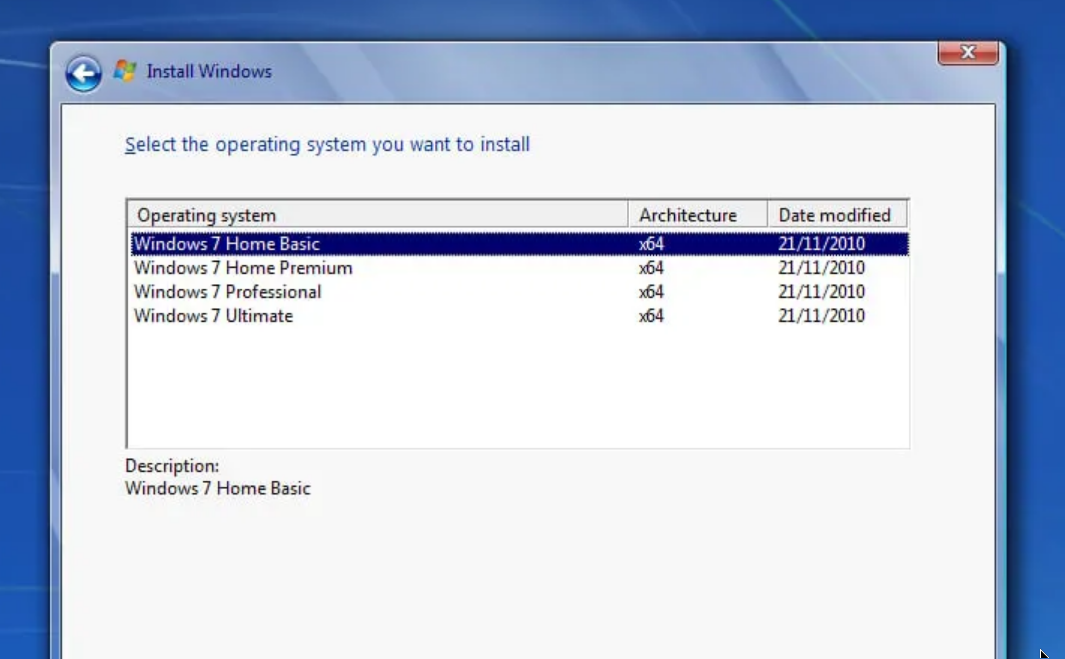 (Don't select Home Basic.)
Home Premium is slightly lighter than Pro.
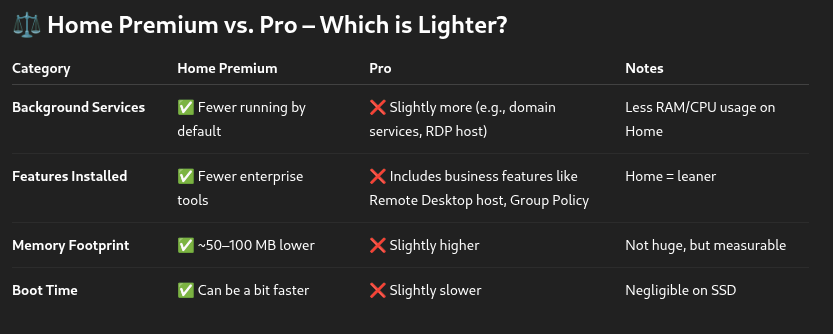
How to make Win7 Home Premium 64bit even lighter yet
- Disable unnecessary services (e.g., Windows Search, Superfetch, Windows Update if working offline)
- Use a minimal Windows 7 install (via NTLite or similar)
- Disable Aero and visual effects
- Kill startup items and background apps
- Set Power Plan to High Performance
- Avoid running antivirus unless going online
Notes on 64bit system
- 64-bit OS: Supports over 4 GB of RAM (up to 192 GB on Win7 Pro)
- 32-bit OS: Limited to ~3.5 GB usable RAM, even if you install more
- Ableton Live 9 and newer come in 64-bit versions. 64-bit version can load more plugins and handle larger sets without memory crashes. If you run 32-bit Windows, you're stuck with 32-bit Ableton, which severely limits how much memory a project can use.
- On 64-bit Windows, you can run both 64-bit and 32-bit plugins (with a plugin bridge like JBridge, if needed). On 32-bit Windows, you cannot run 64-bit plugins at all.
Example of newer (but still old) computer trying to run Win7 (which may be totally doable but ...)
L380:
- Lack of official drivers: Intel's 8th Gen CPUs (Kaby Lake-R, likely an i5-8250U) are not supported by Windows 7.
- No official chipset, graphics, or USB drivers for Win7.
- USB 3.x driver issue: The L380 lacks native PS/2 ports and uses USB-only input.
- Windows 7 installation media doesn't natively support USB 3.0/3.1, making it impossible to use mouse/keyboard during setup without slipstreaming drivers.
- UEFI and Secure Boot: Windows 7 has limited UEFI support and no Secure Boot support, so you'd need to disable Secure Boot and potentially enable Legacy Boot (if available).
Making a Windows 7 install flashdrive (to install Win7 Pro 64bit, the version that allows more than 4gb RAM)
Format your flashdrive (?or microSD? does that work?) to FAT, and newer computers like the Thinkpads I use (although not very new) use EUFI not traditional (legacy) BIOS.
Windows 7 has different RAM limits depending on the edition and whether it is a 32-bit or 64-bit version. Here is a summary of the RAM limits for various Windows 7 editions
- Windows 7 Starter: Supports up to 2 GB of RAM.
- Windows 7 Home Basic: Supports up to 8 GB of RAM.
- Windows 7 Home Premium: Supports up to 16 GB of RAM.
- Windows 7 Professional: Supports up to 192 GB of RAM.
- Windows 7 Enterprise: Supports up to 192 GB of RAM.
- Windows 7 Ultimate: Supports up to 192 GB of RAM.
Note about 64bit
- For 32-bit versions of Windows 7, the maximum RAM limit is 4 GB.
- For 64-bit versions, the RAM limits vary by edition as mentioned above. It is important to note that the actual usable RAM may be less due to hardware addressing limitations.
After installing Win7 Home Basic 64 bit, do the following to configure a lightweight OS designed only to run Ableton
1. Install only essential drivers
- Chipset
- Intel HD Graphics 4000
- Realtek Audio (if not using external interface)
- Ethernet/Wi-Fi (if needed)
2. Use SSD for system drive
(Now strip down Windows.)
3. Disable Windows Features
Control Panel → Programs → Turn Windows Features On/Off
- Tablet PC Components
- Windows Gadget Platform
- Indexing Service
- Games
- XPS Viewer/Writer
- Keep .NET Framework 3.5/4.x for plugin compatibility
4. Visual Effects
Right-click Computer → Properties → Advanced → Performance → Settings
- Choose “Adjust for best performance” (or manually disable shadows, animations, etc.)
5. Desktop settings:
- Use Basic Theme (no Aero)
- Set solid color background
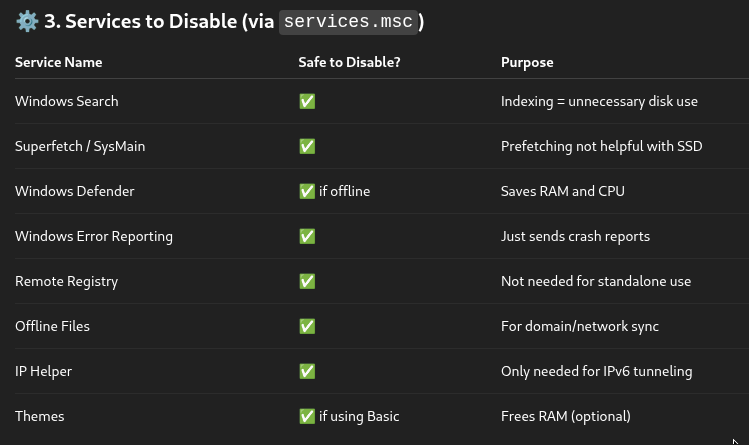
6. Services to Disable (set these to Disabled or Manual depending on your setup)
7. Audio Optimization
Use an ASIO driver. If using an audio interface: Install manufacturer’s ASIO driver. Otherwise, install ASIO4ALL (install ASIO4ALL anyway to use any interface).
8. Power Settings
Control Panel → Power Options → Create/Select High Performance plan
- Turn off CPU power saving: Advanced Settings → Processor power management
- .... Minimum processor state = 100%
- .... Maximum processor state = 100%
- Disable USB selective suspend
- Disable sleep/hibernate
9. Startup & Background Programs
- Use MSConfig or Autoruns to disable all non-essential startup items
- Disable update checkers (Adobe, Java, etc.)
- Don’t install antivirus unless going online (or use lightweight AV like MSE and disable real-time protection during sessions)
10. Disable Windows Update once stable
11. In Ableton
- Set Audio Buffer Size appropriately (e.g., 128–512 samples)
- Use Sample Rate consistent with your interface (e.g., 44.1 kHz)
- Disable onboard sound if using USB interface:
- BIOS → Disable Realtek Audio


